
How to merge Shopify orders onto one Australia Post label
Short answer
Select the orders going to the same customer and use Merge & Generate Single Label. All In One Australia Post Ship creates one label for the combined parcel and marks each ticked order fulfilled in Shopify with the same tracking number. Merging is included in the Advanced and Premium plans.
A customer buys something on Monday morning, then remembers one more thing that afternoon. Posting two parcels to the same door costs you twice. Merging puts both orders on one label.
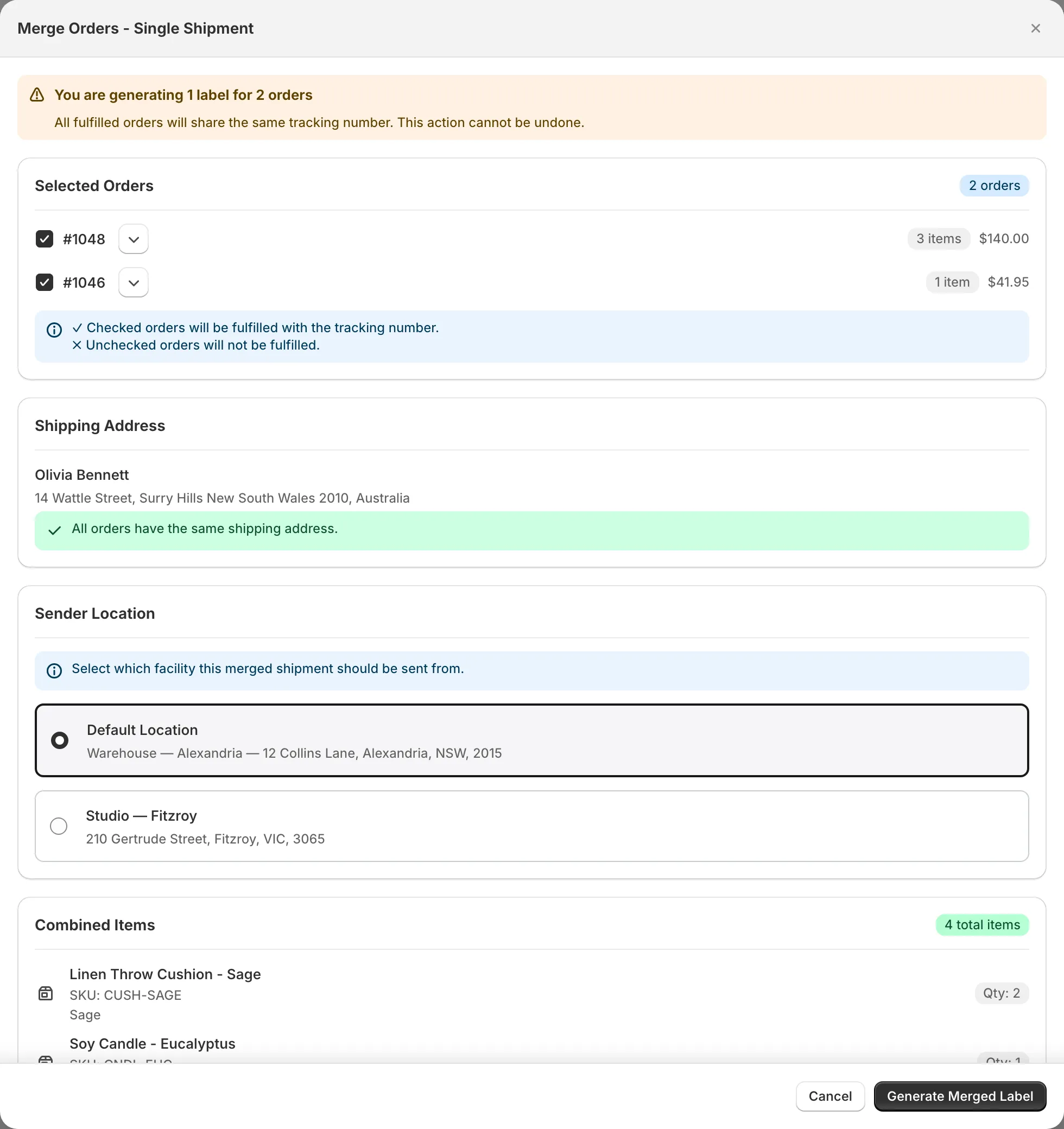
How to merge orders
- On the Unfulfilled tab, tick the orders going to the same customer.
- Press Merge & Generate Single Label.
- Check the orders listed. Any you untick will not be fulfilled.
- Confirm that the shipping address is right. The window tells you when all the orders share the same address.
- Choose the sender location for the combined parcel.
- Press Generate Merged Label.
What to check first
- Weight and packaging. The combined items need to fit the package you choose. Australia Post refuses parcels over 105 cm on any side or 0.25 cubic metres.
- Delivery choice. If one order paid for Express and another chose Parcel Post, decide which service the parcel will use before you generate it.
- Tracking. Each order gets the same tracking number, so the customer sees one parcel for both orders.
When not to merge
Keep orders separate if the items ship from different places, won’t fit together, or need to arrive on different days.
Common questions
Can a merge be undone?
No. Once generated, all the merged orders share one tracking number, and the app warns you about this before you confirm.
Can I make a merged label without fulfilling the orders?
No. Merging always fulfils the ticked orders, so Merge & Generate is greyed out while Fulfill in Shopify is switched off.
What happens if a merged label fails?
The app shows the reason after 'Failed to create merged shipment'. For an address problem, it names the suburb, state and postcode that Australia Post didn't recognise.